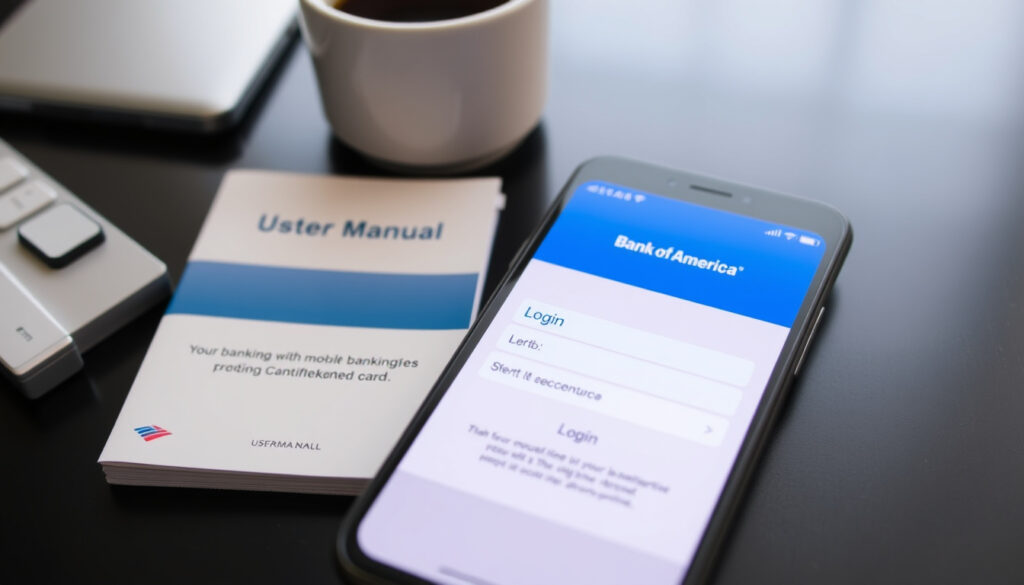
Bank of America App: Download, Set Up, and Troubleshoot | Guide
Anyone who’s ever tried to log into their bank account from a foreign country already knows: banking apps don’t always cooperate. The Bank of America mobile banking app, available for free on the App Store and Google Play, offers a solid set of tools—but only if you can get it installed and working, especially from abroad.
App Store Rating: 4.8 stars ·
Google Play Rating: 4.5 stars ·
Number of Downloads: Over 50 million ·
Account Types Supported: Checking, savings, credit cards, loans, investments
Quick snapshot
- Free on App Store and Google Play (Bank of America – Mobile Banking Page)
- Requires US-based account (Bank of America – Getting Started with Mobile Banking)
- Supports iOS and Android (Bank of America – Mobile Banking Page)
- Use existing user ID and password (Bank of America – Getting Started)
- Enroll for online banking (Bank of America – Getting Started)
- Enable Face ID or fingerprint (Bank of America – security FAQs)
- Check device compatibility (Bank of America – Mobile Banking FAQ)
- Update operating system (Bank of America – Mobile Banking Customer Service & Contact)
- Free up storage space (Bank of America – Mobile Banking FAQ)
- App works abroad with internet (Bank of America – Mobile Banking FAQ)
- US phone number needed for 2FA (Bank of America – Getting Started with Mobile Banking)
- Mobile web as backup (Bank of America – Getting Started with Mobile Banking)
Five details, one pattern: the Bank of America app is built primarily for US-based account holders, with limited official support for international installation scenarios.
| Label | Value |
|---|---|
| App Name | Bank of America Mobile Banking |
| Developer | Bank of America |
| Latest Version | Varies by device (2025) |
| Size | Approximately 200 MB |
| Languages | English, Spanish, and others |
How do I get my Bank of America app?
Download from Google Play
- Open the Google Play Store on your Android device.
- Search for “Bank of America Mobile Banking” and select the official app.
- Tap “Install” – the app is free and requires about 200 MB of storage.
The app is available for Android 8.0 and above, as confirmed by Bank of America’s mobile banking customer service page.
Download from App Store
- Open the App Store on your iPhone or iPad.
- Search for “Bank of America Mobile Banking” and download the app.
- Requires iOS 14 or later, as stated in the App Store listing.
Bank of America directs users to visit the store and “download our app today.” The app is free on both platforms, but you’ll need a Bank of America account to log in.
Downloading the app is straightforward inside the US, but users abroad often hit a wall: the app may not appear in local app stores. Bank of America’s guidance doesn’t address this directly, leaving travelers and expats to find workarounds.
The takeaway: Getting the app is the easy part if you’re in the US. Outside, the real challenge begins.
How do you set up your Bank of America app?
Create an online banking account
If you don’t already have online banking access, you can enroll through the app or by visiting bankofamerica.com in a mobile browser. Use your account number and Social Security number to verify your identity. Bank of America’s mobile banking FAQ explains that you can start either in the app or in a web browser.
Log in to existing account
- Enter your Online Banking ID and password.
- If you’ve forgotten your credentials, the app offers a password reset flow.
Bank of America maintains a dedicated login issues help page (official troubleshooting) for users who need to recover access.
Set up biometric login
Once logged in, enable Face ID (iOS) or fingerprint (Android) from the settings menu. This makes future logins faster and more secure. The app’s security FAQ notes that biometric authentication is optional but recommended.
Troubleshooting sources on YouTube often suggest disabling VPNs and clearing cache before reinstalling the app, but Bank of America’s own site doesn’t endorse these steps formally. Third-party advice (YouTube tutorial – common fixes) may fill gaps, but proceed with caution.
The pattern: International users lose the most time on 2FA phone requirements. Resolve that first, and setup flows smoothly.
Why can’t I download the Bank of America app?
Device compatibility issues
The app requires iOS 14+ or Android 8+. If your device is older, you may see “this app is not compatible with your device” in the app store. Check your operating system version in Settings.
Region restrictions
The Bank of America app is officially available only in the United States and its territories. When you try to download from a Google Play or App Store account registered in another country, the app may not appear at all. Bank of America’s mobile banking FAQ implicitly assumes US residency; there is no dedicated international download page.
Insufficient storage
The app requires roughly 200 MB of free space. If your device reports low storage, free up space by deleting unused apps or media, then try again. Third-party walkthroughs also recommend clearing the app cache before reinstalling.
The pattern: Most download failures stem from region locks or device age. Bank of America’s app stores are geo-filtered, which catches many travelers off guard.
How do I fix an app not available in your country or region?
Use a US Apple/Google account
One common workaround is to create a US-based Apple ID or Google account and log in with that to download the app. This requires a valid US address but no US payment method. Bank of America does not officially endorse this method; its help center only addresses US-based download instructions.
Change region settings
Some users try switching their device region to the United States, but this often fails because the app store’s country is tied to the account, not the device. Bank of America’s mobile banking contact page exists to help with installation questions, but it doesn’t provide detailed region-bypass steps.
Contact Bank of America support
If you’re a US citizen living abroad, call Bank of America’s international support line. The bank may be able to assist with accessing the app through alternative methods. Bank of America’s Help Center (general support) lists contact options for account-related questions.
The implication: These workarounds exist in a gray zone—functional but unsupported—leaving travelers to weigh convenience against compliance.
Can I access my banking app from abroad?
Using the app internationally
Once the app is installed, it works abroad as long as you have an internet connection. Bank of America’s mobile banking is designed for US-based accounts, but the app itself does not geo-block usage. However, two-factor authentication (2FA) may require a US phone number to receive an SMS code.
Fees for international transactions
Using the app to check balances is free. Transactions made while abroad (ATM withdrawals, purchases) may incur foreign transaction fees. Consult your account’s fee schedule.
Keep bank account while living abroad
Bank of America allows non-residents to keep their accounts, but you must maintain a US mailing address. The app remains accessible; the main hurdle is downloading it once you’re already overseas. Bank of America’s mobile banking page promotes the app as a way to “bank simply and conveniently,” but doesn’t address international retention policies explicitly.
For the estimated 9 million US citizens living abroad, the app’s region restriction is a daily frustration. Bank of America’s official fallback is the mobile web browser, which works everywhere but lacks some app-specific features like fingerprint login and push notifications.
Confirmed facts
- App is free to download (Bank of America – download page)
- Available on App Store and Google Play (Bank of America – mobile banking FAQ)
- Requires a US-based Bank of America account (Bank of America – Getting Started with Mobile Banking)
- App works abroad with internet connection (Bank of America – Mobile Banking FAQ)
What’s unclear
- Exact availability in specific countries – not documented by Bank of America
- Whether using a VPN violates terms of service – not stated publicly
- Effectiveness of region change workarounds – varies by individual experience
Pros and cons of the Bank of America app
Upsides
- High ratings on both app stores (4.8 iOS, 4.5 Android) (Bank of America – Mobile Banking Page)
- Free to download and use (Bank of America – download page)
- Features: mobile check deposit, Zelle transfers, account alerts (Bank of America – mobile banking FAQ)
- Biometric login support (Bank of America – security FAQs)
Downsides
- Only available for US residents in official app stores (Bank of America – mobile banking FAQ)
- Region lock prevents downloading from abroad (Bank of America – Getting Started with Mobile Banking)
- Occasional technical glitches (crashes, login timeouts) reported on forums
- Requires US phone number for certain 2FA scenarios (Bank of America – Mobile Banking FAQ)
What this means: The app earns high marks for functionality but loses points on accessibility. International users bear the cost of the region restriction most acutely.
Step-by-step guide to using the Bank of America app
- Download – Use a US app store account to install the Bank of America Mobile Banking app.
- Log in – Enter your Online Banking ID and password. If you don’t have one, select “Enroll” and follow the prompts.
- Enable quick access – Set up Face ID, Touch ID, or fingerprint under Security settings.
- Explore features – Use the app to view balances, deposit checks, transfer funds, and pay bills.
- Troubleshoot if needed – If the app crashes, force close it and restart your phone. Clear cache and data from Settings (Android) or offload the app (iOS).
- Reinstall – As a last resort, uninstall and download a fresh copy from the official app store (YouTube tutorial – reinstall steps).
The pattern: Every step assumes US-based access. For international users, step 1 is the only real hurdle—once past it, the rest follows the same path.
What users say about the Bank of America app
“Bank simply and conveniently with the Bank of America Mobile Banking app for US-based accounts.”
Bank of America – Mobile Banking App Features and Tools
“The mobile banking app is designed for US-based checking, savings, credit card, loan and investment accounts.”
Bank of America – Getting Started with Mobile Banking
The implication: Both official descriptions reinforce the same boundary: the app is built for US account holders. International functionality is a side effect, not a design goal.
Frequently asked questions
Is the Bank of America app secure?
Yes. The app uses encryption, multi-factor authentication, and optional biometric login. Bank of America’s security FAQ explains that app store privacy practices are separate from the bank’s own policies.
Does the Bank of America app support fingerprint login?
Yes. Android devices can use fingerprint, and iOS devices support Face ID. Enable it in the app’s security settings after logging in.
Can I deposit checks with the Bank of America app?
Yes. The app supports mobile check deposit. Endorse the check, take a photo, and submit. Funds are typically available the next business day.
How do I update the Bank of America app?
Update through your device’s app store (Google Play or App Store). Enable auto-update to ensure you always have the latest version with security patches.
What should I do if the app crashes?
Try force-closing the app and restarting your phone. Clear the app cache (Android) or offload the app (iOS). If the problem persists, uninstall and reinstall from the official store.
Can I use the Bank of America app on a tablet?
Yes. The app is compatible with iPad and Android tablets. The interface scales to fit larger screens, though some features may behave differently.
Editor’s note: For US expats and frequent international travelers, the choice is clear: pre-download the app while in the US, or rely on the mobile web version from abroad. Keeping a US phone number active for 2FA is essential to maintain full access.
More related posts
 What Does 67 Mean? Six Seven Slang, *67 Code Explained
 Rage Room Near Me: Costs, Age Rules & Health Facts
 When to Worry About Blood in Stool: A Quick Guide
 Best Wordle Starting Words – CRANE and SLATE Top 2025 Rankings
 Thor Love and Thunder – Plot, Cast, Ending Explained
 Type 1 Diabetes Symptoms: Early Signs in Kids and Adults
 Black Bolt White Flare: Cards, Booster Bundles & Hits
 12 Tribes of Israel: Names, History, and Modern Legacy